
Project Collaboration


Get Your Entire Team on the Same Page
Construction projects involve multiple parties: site managers, foremen, subcontractors, architects, and clients. Communication across these groups is often fragmented across phone calls, WhatsApp groups, and email chains. Important updates get lost, and no one has a single source of truth.
How Project Collaboration Works
Invite anyone to your project with their email address. Assign the right role (viewer, editor, or admin) and they can immediately access the project’s timeline, reports, and gallery.
Everyone contributes to the same timeline, sees the same dashboard, and has access to the same reports. No more “Did you get my email?” or “Can you send me that photo?”
Role-Based Access Control
- Admin: Full project control: invite members, edit settings, generate reports
- Editor: Add entries to the timeline, view reports and gallery
- Viewer: Read-only access to timeline, reports, and gallery
Invite Anyone
- Team members: Your field workers and site managers
- Clients: Give clients view-only access to follow progress
- Subcontractors: Let subs document their own work in the shared timeline
- Architects and engineers: Share project status without email attachments
Key Benefits
- Single source of truth: Everyone sees the same information, always up to date
- Controlled access: Share exactly the right level of information with each person
- Reduced miscommunication: No more relaying information through phone calls or message chains
- Accountability: Every entry is attributed to the person who created it
- External collaboration: Invite people outside your organization to specific projects
Use Cases
General Contractor with Subcontractors
Invite subcontractors as editors so they can document their own work directly in the timeline. The GC has a complete record of all work across all trades in one place.
Architect Review
Share view-only access with the project architect. They can check progress photos and daily reports without needing separate status meetings or email updates.
Client Transparency
Give clients view-only access to the dashboard and reports. They see progress in real-time, building trust and reducing the need for constant update calls.
Frequently Asked Questions
What roles can I assign to team members?
You can assign different access levels: view-only for clients and stakeholders, edit access for team members who need to add entries, and admin access for project managers who need full control.
How do I invite someone to a project?
Enter their email address in the project sharing settings. They receive an invitation to join the project with the role you assigned.
Can I share a project with someone outside my organization?
Yes. You can invite external collaborators like clients, architects, or subcontractors. They only get access to the specific projects you share, not your entire organization.
Is there a limit to how many people can collaborate on a project?
The number of team members depends on your plan. Check our pricing page for details on team sizes for each plan.
Explore More Features

Site Diary Timeline
Document daily construction progress with photos, videos, voice memos, and notes in Site Diary AI's intuitive chat-style timeline.

Organization Branding
Customize Site Diary AI with your company's logo, colors, and branding. White-label construction documentation for your team.
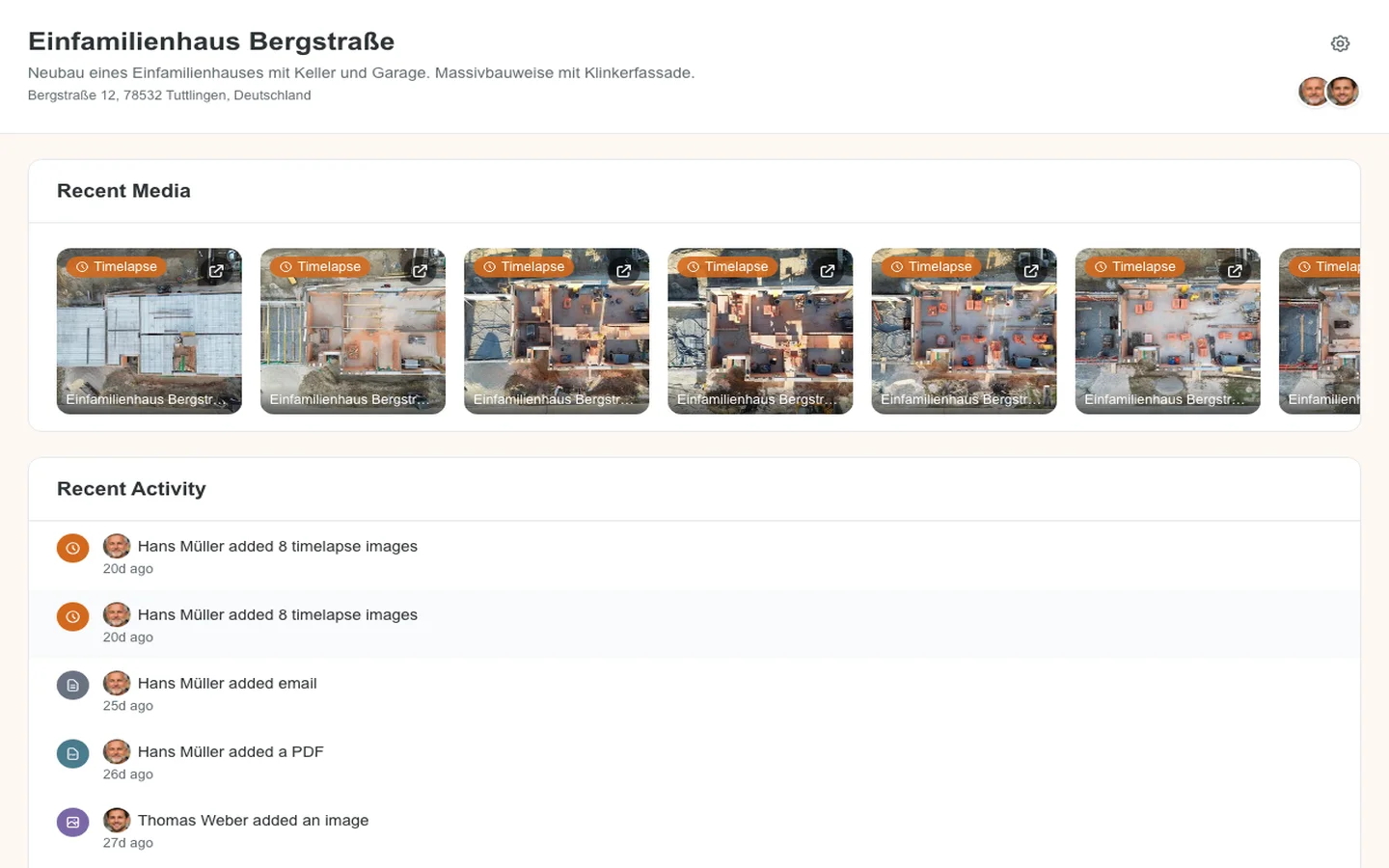
Project Dashboard
Get a complete overview of your construction project with recent media, activity feed, and key statistics at a glance.